
Sun studies are essential for architects and designers to understand how sunlight interacts with structures…
Revit Freezes with PyRevit: Fixes
If Revit freezes when using PyRevit, the issue typically stems from one of these five causes: antivirus interference, software version mismatches, corrupted installations, system performance limitations, or conflicting add-ins. These problems can disrupt workflows, delay projects, and frustrate teams.
Key Fixes:
- Antivirus Issues: Whitelist PyRevit and Revit folders in antivirus software.
- Version Conflicts: Use compatible versions of Revit and PyRevit.
- Reinstallation: Remove old PyRevit files completely before installing the latest version.
- System Performance: Ensure sufficient RAM, CPU capacity, and use SSDs for faster performance.
- Add-In Conflicts: Disable non-essential add-ins and re-enable them one by one to identify conflicts.
Prevention Tips:
- Regularly update Revit, PyRevit, and your system.
- Test add-ins in a controlled environment before deployment.
- Back up and audit models frequently.
These steps will help maintain Revit’s stability and avoid freezing issues, enabling you to focus on design work without interruptions.
pyRevit Checklist for 30 Most Common Mistakes
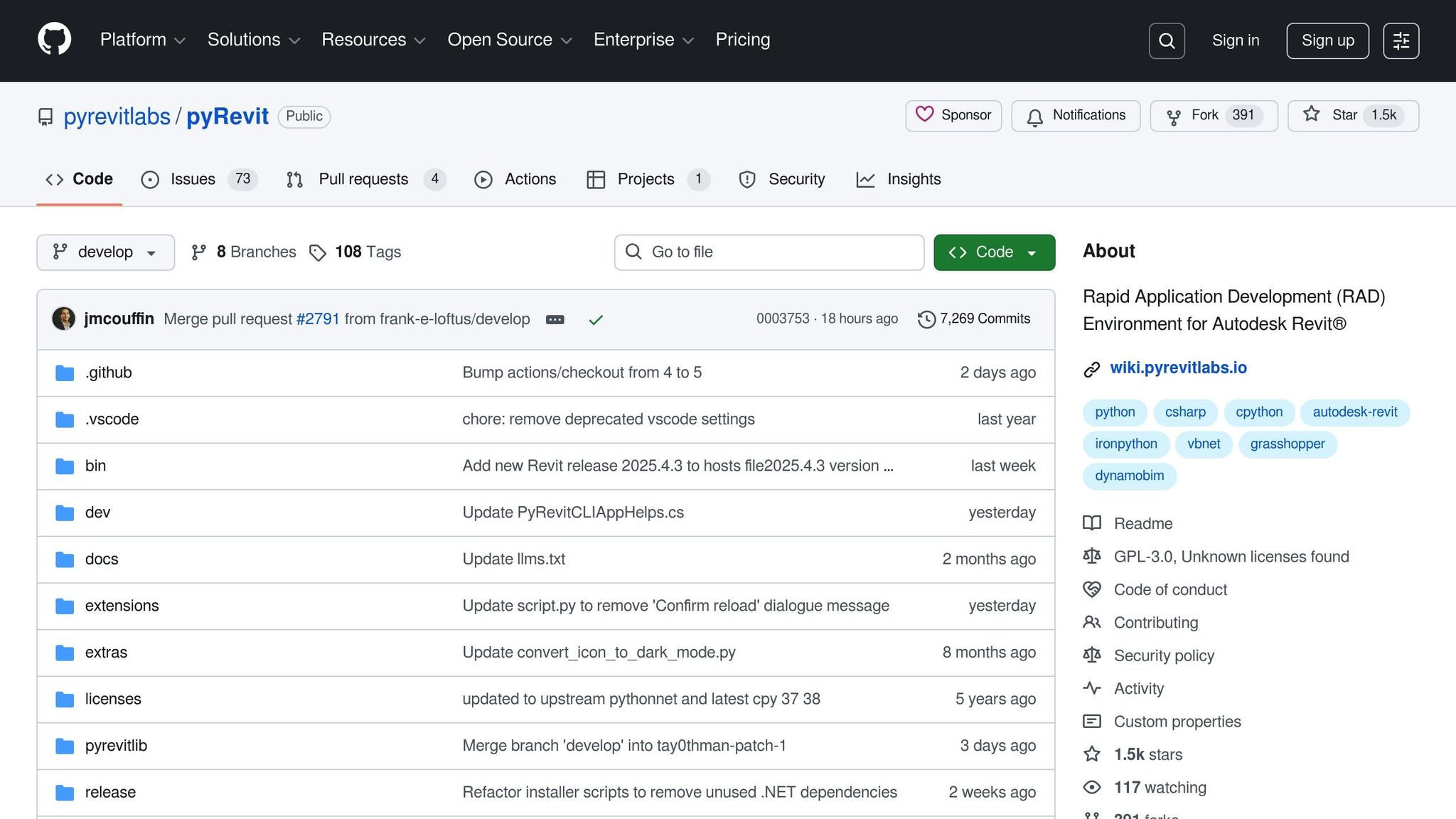
Why Revit Freezes with PyRevit
Understanding why Revit freezes when using PyRevit can help address the problem efficiently. These issues often arise from five main causes: antivirus interference, mismatched software versions, faulty installations, system performance limitations, and conflicts with other add-ins. Let’s break each one down.
Antivirus Software Problems
Antivirus programs are a common culprit behind PyRevit-related freezes. For instance, in February 2025, a user named BIMGSE faced crashes with Revit 2025 while using PyRevit, even though the same PyRevit setup worked perfectly with Revit 2022, 2023, and 2024 on the same machine. Despite setting exceptions in SentinelOne, the issue persisted. As noted by pyRevit contributor jmcouffin:
This example underscores that antivirus exceptions for older software versions might not carry over to newer installations. Updating your antivirus settings to whitelist the latest versions of PyRevit and Revit is often necessary. BitDefender has also been linked to similar freezing issues. Back in January 2021, architects reported that Revit froze during antivirus scans, even after excluding Autodesk-related processes and folders. In some cases, these freezes were so severe that they required a hard shutdown.
Wrong Software Versions
Compatibility issues between PyRevit and Revit versions are another frequent cause of freezing. Using an outdated version of PyRevit with a newer Revit release can result in startup crashes. This happens due to what developers call “DLL hell” or “assemblies mismatch”, where software components expect specific file versions that no longer exist. The problem gets trickier when multiple Revit versions are installed on the same machine. For example, PyRevit might work flawlessly with Revit 2023 but cause Revit 2025 to freeze, leaving users unsure whether the issue lies in the installation or version compatibility.
Bad Add-In Installations
Corrupted installations of PyRevit can also destabilize Revit. If an older version of PyRevit isn’t completely removed before installing a new one, leftover files in directories like AppData, ProgramData, or even Windows registry entries can interfere with Revit. This can create a loop where Revit searches for outdated or missing components, leading to freezes. Additionally, failed installation attempts can leave incomplete files that cause Revit to hang when trying to load them.
Computer Performance Issues
System limitations can make PyRevit-related freezes worse, especially when working with large models. While PyRevit itself doesn’t demand heavy resources, it does add extra processing tasks. On systems with limited RAM or older CPUs, this can lead to freezes as Revit and PyRevit compete for resources. For example, running complex 3D views or executing intensive PyRevit scripts on a low-performance system can overwhelm the CPU. Similarly, if PyRevit needs to access files stored on a slow or outdated hard drive – such as a network drive – this can delay operations and make Revit appear unresponsive.
Add-In Conflicts
Conflicts between PyRevit and other Revit add-ins are another common source of freezing. Popular plugins like Enscape, Rhino.Inside, Dynamo, and manufacturer-specific tools can interfere with PyRevit’s functionality. These conflicts often occur when multiple add-ins try to access the same resources or modify Revit’s interface simultaneously. Add-ins that alter Revit’s startup sequence or memory allocation can also prevent PyRevit from loading properly, causing freezes during the application’s startup process.
How to Fix Revit Freezing Issues
To address Revit freezing problems, follow these practical steps based on the likely causes. Here’s how to resolve the most common issues.
Check Computer Performance
Start by evaluating your system’s performance to spot any resource limitations. Open Task Manager with Ctrl + Shift + Esc, then head to the Performance tab. While running Revit with PyRevit, monitor CPU and memory usage. If your CPU usage stays above 80% or RAM exceeds 85%, your system might be struggling to manage both applications.
Close unnecessary programs running in the background. Ensure your system meets Autodesk’s minimum requirements: at least 8 GB of RAM (16 GB is better), a multi-core processor, and enough free disk space on your primary drive.
If you’re working from a network drive or using an older mechanical hard drive, transfer your active projects to a local SSD. This can significantly improve loading times and help avoid freezes caused by slow storage access.
Fix Revit Model Problems
Corrupted model files are a common culprit for freezing, especially when PyRevit interacts with them. Before troubleshooting PyRevit, test your current model using Revit’s repair function.
Here’s how: Close Revit completely, reopen it, and go to File > Open. Select your model file, but before clicking Open, check the Audit box in the dialog. This will repair any file corruption during the opening process. Keep in mind, the audit may take a few minutes for larger models, but it often resolves issues caused by damaged data.
If the model opens successfully after auditing and PyRevit functions as expected, save the file to retain the repairs. Repeat this process for other models to ensure they’re also clean.
Reinstall PyRevit Properly
Compatibility issues between PyRevit versions can cause freezing, often requiring a clean reinstallation. Simply installing a new version over an old one may leave behind conflicting files.
First, uninstall PyRevit through Control Panel or Settings > Apps. If you have PyRevit CLI installed, remove it as well. After uninstalling, manually delete any leftover PyRevit folders to ensure a clean slate.
Look for and delete these folders:
C:\ProgramData\pyRevit%AppData%\pyRevit%AppData%\pyrevit-masterC:\Program Files\pyRevit-Master
After clearing these locations, restart your computer. Then download and install the latest version of PyRevit that matches your Revit version. This fresh installation avoids conflicts often referred to as “DLL hell.”
Fix Antivirus Blocking
Antivirus software can interfere with PyRevit’s operations, causing Revit to freeze while waiting for blocked processes. To fix this, add Revit and PyRevit folders to your antivirus exclusion list.
Locate the Exclusions, Exceptions, or Whitelist section in your antivirus settings. Add these file paths to prevent scanning interference:
Revit Folders:
C:\Program Files\Autodesk\Revit 2025\(adjust the year as needed)C:\ProgramData\Autodesk\Revit\C:\Users\[YourUsername]\AppData\Roaming\Autodesk\Revit\
PyRevit Folders:
C:\ProgramData\pyRevit\C:\Users\[YourUsername]\AppData\Roaming\pyRevit\- Any custom PyRevit installation directory you’ve used
After adding these exclusions, restart your antivirus software and your computer.
Turn Off Problem Add-Ins
Conflicting add-ins can also cause freezing. To pinpoint the issue, follow these steps based on your version of Revit.
For Revit 2025.3 and later, use the built-in Add-ins Manager. Open Revit and access the Add-ins Manager. If you’re not using cloud models, click “Disable all Add-ins“ and restart Revit. If you do use cloud models, only disable non-essential add-ins, keeping “Autodesk Collaborate“ and “ExportViewSelectorApp.addin“ active.
For Revit 2024 and earlier, you’ll need to disable add-ins manually. Close Revit and navigate to these folders:
C:\ProgramData\Autodesk\Revit\Addins\[Version]C:\ProgramData\Autodesk\ApplicationPluginsC:\Users\%USERNAME%\AppData\Roaming\Autodesk\Revit\Addins\[Version]C:\Users\%USERNAME%\AppData\Roaming\Autodesk\ApplicationPlugins
Move all .addin files and their associated folders from these locations to a temporary folder on your desktop. If you use cloud models, leave Autodesk.Collaborate.addin, ExportViewSelectorApp.addin, and the ExportViewSelectorAddin folder in place.
Restart Revit with PyRevit. If the freezing stops, an add-in conflict is the issue. To identify the specific add-in, move one file back to its original location, restart Revit, and test. Repeat this process until the freezing returns. The last add-in you restored is likely the problem.
Once identified, check with the add-in’s developer for updates or compatibility patches. Popular plugins like Enscape, Rhino. Inside, and others often release updates to fix compatibility issues with Revit.
sbb-itb-97ff2c1
How to Prevent Future Problems
Taking a few simple steps can help you maintain a smoother workflow when using Revit and PyRevit together. Here’s how to keep things running efficiently.
Keep Software Updated
Make it a habit to check for Revit updates every month. You can do this by navigating to Help > Check for Updates, or you can enable automatic updates through the Autodesk Desktop App. Staying current ensures you’re using the most stable version of the software.
For PyRevit, updates are just as important. Head to the PyRevit GitHub releases page every few months to grab the latest stable version. Avoid beta releases for your production work since they might introduce unexpected issues.
Don’t forget to keep your system updated as well. Regularly update Windows, .NET, and your graphics drivers. These updates ensure that Revit performs at its best and can handle new add-ins without trouble.
Test New Add-Ins First
Before rolling out new add-ins to your projects, test them in a controlled environment. Use a simple, dedicated Revit model to see how the add-in behaves. If possible, test on a separate computer or create a new Windows user profile just for this purpose.
Run the add-in through your usual workflows for at least a week. Pay attention to system performance and document the results. Note down the version numbers and installation dates of stable add-ins – this record will be a lifesaver if you encounter issues later or need to set up other workstations.
For those managing multiple workstations, a staged rollout is a smart move. Start by installing the add-in on a single computer. Test it for two weeks, and if no issues arise, gradually deploy it to the rest. This approach minimizes the risk of widespread disruptions.
Finally, protect your work by regularly backing up and auditing your models.
Back Up and Check Models Often
Set up weekly audits for your Revit projects and configure automatic backups to run every 30 minutes. You can do this under File > Options > General. To safeguard your data, store these backups on a separate drive from your active project files.
If you’re working on centralized models, Revit’s Worksharing Monitor can be incredibly helpful. It tracks synchronization issues that could lead to file corruption. Address warnings as they appear – ignoring them can cause bigger problems down the line.
Before making major design changes, create milestone backups. Use clear naming conventions like “ProjectName_09-04-2025_BeforeSchematicChanges.rvt” so you can quickly restore earlier versions if needed.
Get Professional Training
Understanding Revit deeply can make a big difference when diagnosing PyRevit issues. Training programs like those offered by CAD Training Online provide Autodesk-certified courses that teach advanced troubleshooting and best practices for managing add-ins. Their instructor-led sessions often include real-world scenarios, giving you practical tools to resolve common problems and improve your workflow.
If you prefer learning at your own pace, self-guided options are available. These allow you to focus on specific skills, like family creation, worksharing, or optimizing performance. This targeted approach can help you avoid many of the issues that might slow you down.
With these steps, you’ll spend less time troubleshooting and more time focusing on what really matters – your design work. And with CAD Training Online’s satisfaction guarantee, you can be confident that the knowledge you gain will be immediately useful.
Summary of Main Fixes
Here’s a rundown of the main fixes discussed earlier.
When Revit freezes while using PyRevit, the root cause usually falls into one of five areas: performance limitations, corrupted model files, incorrect PyRevit installation, antivirus interference, or conflicting add-ins. Each issue comes with specific troubleshooting steps to resolve it.
Start by checking your system’s RAM and storage capacity. Low resources can cause freezes, even if PyRevit is set up correctly. Next, inspect your model files for corruption and reinstall PyRevit using the official installer from GitHub.
Antivirus interference is a common but often overlooked issue. Be sure to whitelist both Revit and PyRevit folders in your antivirus software to avoid unexpected freezes. Additionally, temporarily disabling other add-ins can help pinpoint conflicts that might not be immediately obvious.
To avoid problems in the first place, focus on prevention. Keep your software updated, test new add-ins systematically, and back up your models regularly. These habits can save you hours of troubleshooting down the road.
For those looking to sharpen their skills, CAD Training Online offers Autodesk-certified courses. Their instructor-led sessions dive into advanced topics like optimizing worksharing and tuning performance, while self-paced options focus on areas such as family creation and model auditing.
Most issues with Revit and PyRevit arise from external factors rather than software bugs. By maintaining a clean system and following structured troubleshooting methods, you can spend more time designing and less time dealing with technical headaches.
Read More:
5 Best Practices for Installing Autodesk Updates
FAQs
What can I do if Revit keeps freezing while using PyRevit, even after trying all suggested fixes?
If Revit keeps freezing even after addressing PyRevit-related issues, consider disabling all third-party plugins, including PyRevit. Then, re-enable them individually to identify which plugin might be causing the problem.
Another approach is to reset Revit to its default settings, clear out temporary files, and double-check that both Revit and all plugins are fully updated. These steps can often resolve persistent freezing issues and ensure the software runs smoothly.
What can I do to prevent Revit from freezing when using the PyRevit plugin?
To prevent Revit from freezing while using PyRevit, make sure your computer is equipped for high performance. Opt for a multi-core CPU with a clock speed of at least 2.5 GHz, pair it with 32 GB or more of RAM, and use an SSD – ideally a 1TB PCIe NVMe – for quicker data access. For graphics, a modern Nvidia RTX series card or an equivalent option is recommended to ensure smooth functionality.
You can also enhance performance by minimizing background applications to lower CPU usage. Don’t forget to keep your drivers updated and ensure both Revit and PyRevit are running on their latest versions for better stability and efficiency.
How can I identify and fix add-ins causing Revit to freeze when using PyRevit?
If Revit keeps freezing when you’re using PyRevit, a good first step is to disable all third-party add-ins. Restart Revit and see if the issue persists. If it runs smoothly without freezing, start re-enabling the add-ins one at a time. Be sure to restart Revit after enabling each add-in to pinpoint which one is causing the problem.
It’s worth keeping an eye on rendering or visualization plugins, as these are often the culprits behind freezing issues. Taking this step-by-step approach can help you identify the conflict and keep Revit running smoothly alongside PyRevit.

Comments (0)